Model Management
A model catalog is essentially a central library for all the machine learning models used within an organization. It acts like an organized inventory, keeping track of various aspects of these models through metadata. This metadata can include details like versions, variations and its signature configuration, tags, description etc.
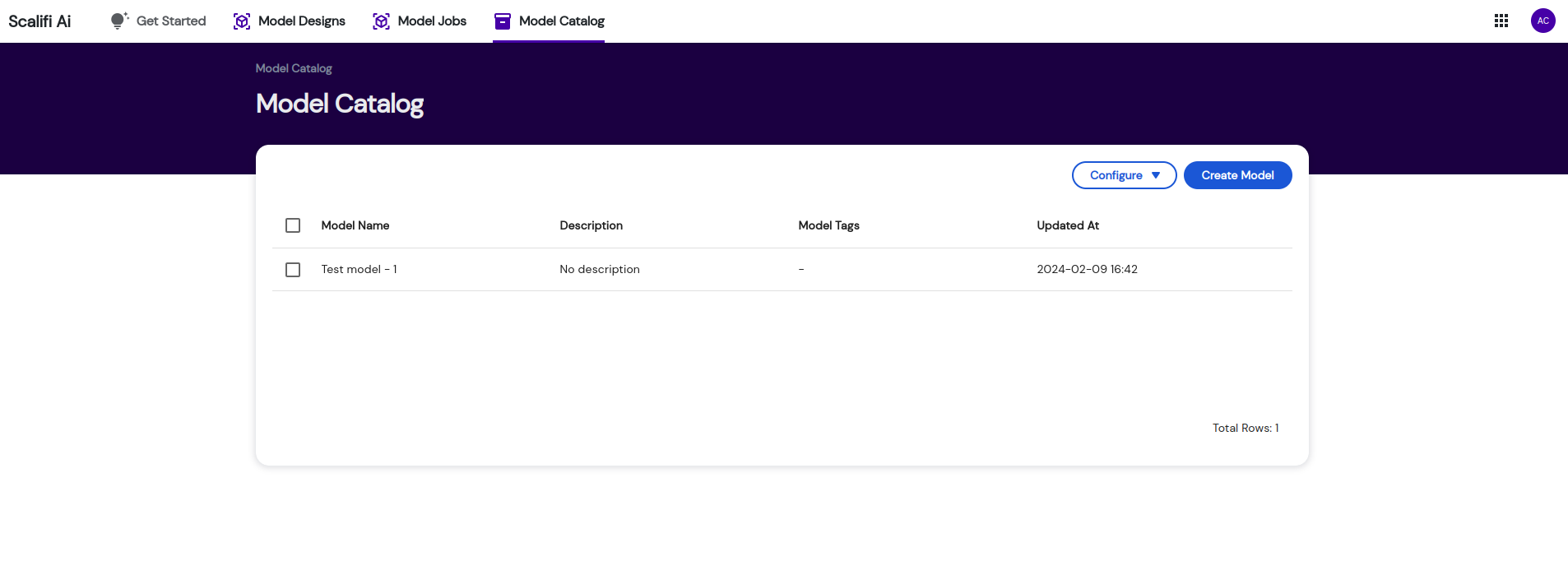
To view/create a model, go to Model Catalog from the dashboard.
Allowed operations that users can perform on the platform are:
- Create Model
- Add Model Tags
- Remove Model Tags
- Model Metadata
- Update Model
- Delete Model
Create Model
- To create a model, click on the Create Model button.
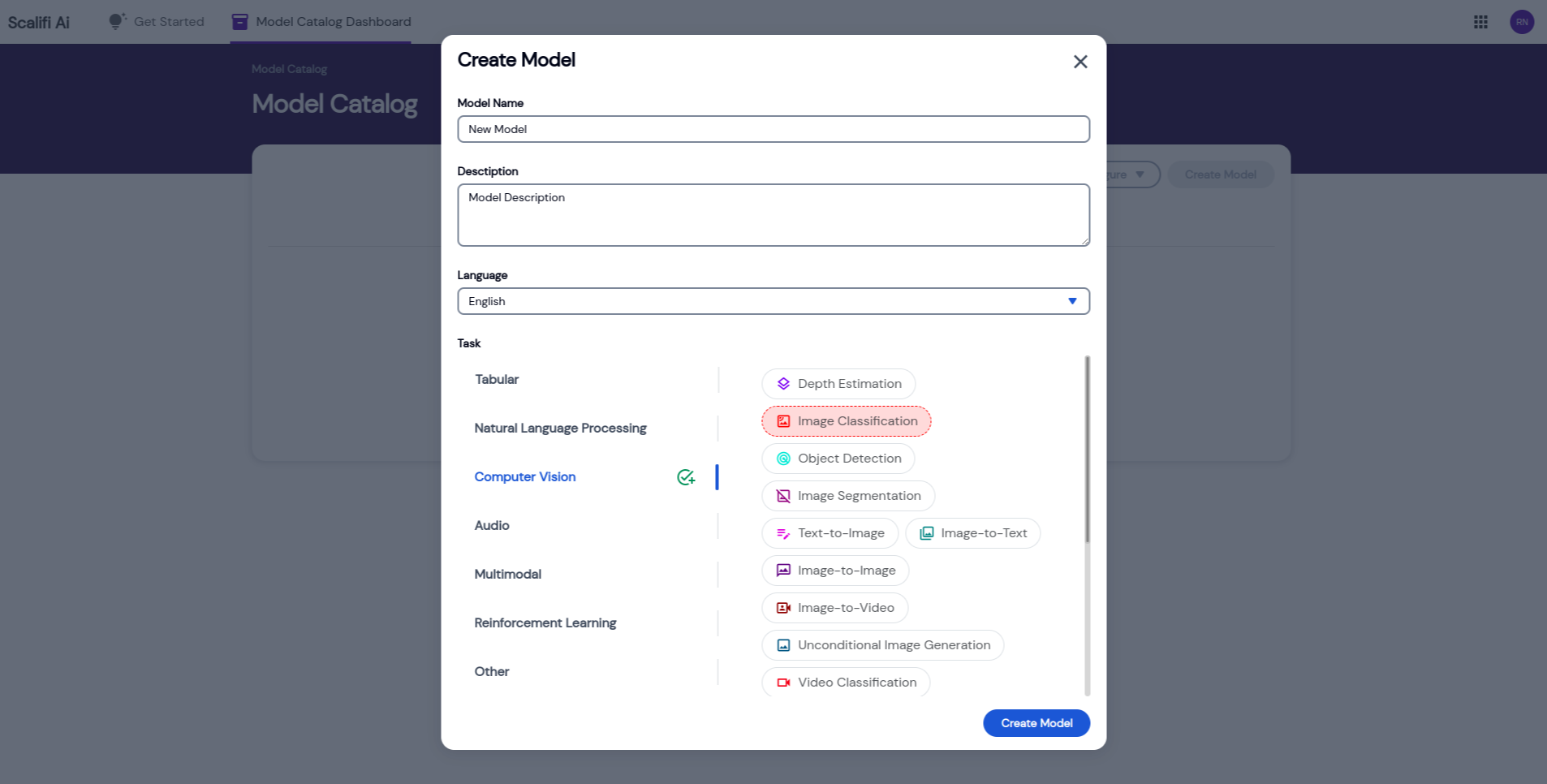
- Enter the Model name, description, language, task you are creating this model for and click on Create Model.
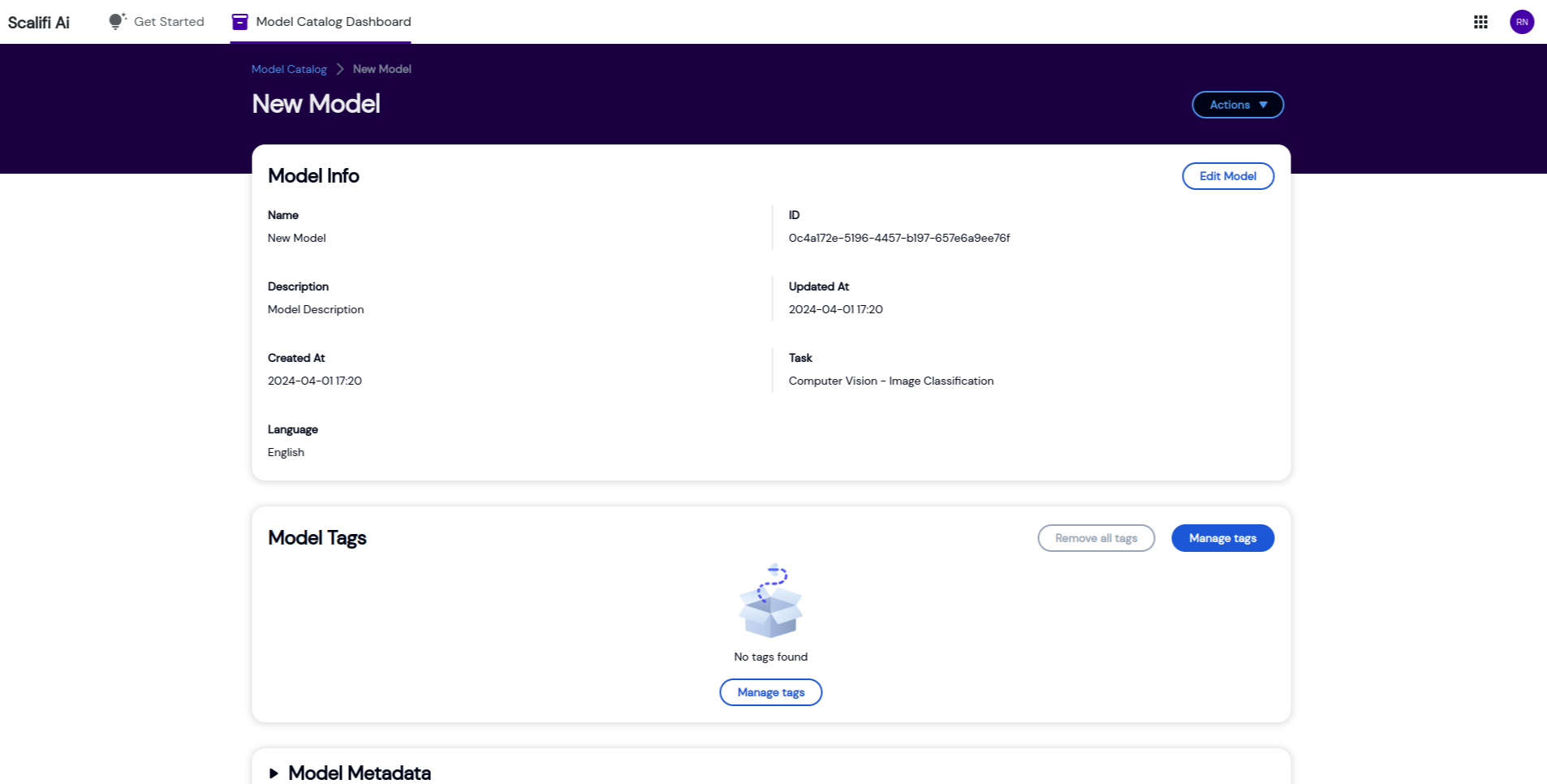
- After successfully creating the model, you will be redirected to the per model page where all the model details are displayed.
Add Model Tags
- Adding tags to models help in searching, filtering or categorizing different models based on various criterias. These tags are added in a key value pair.
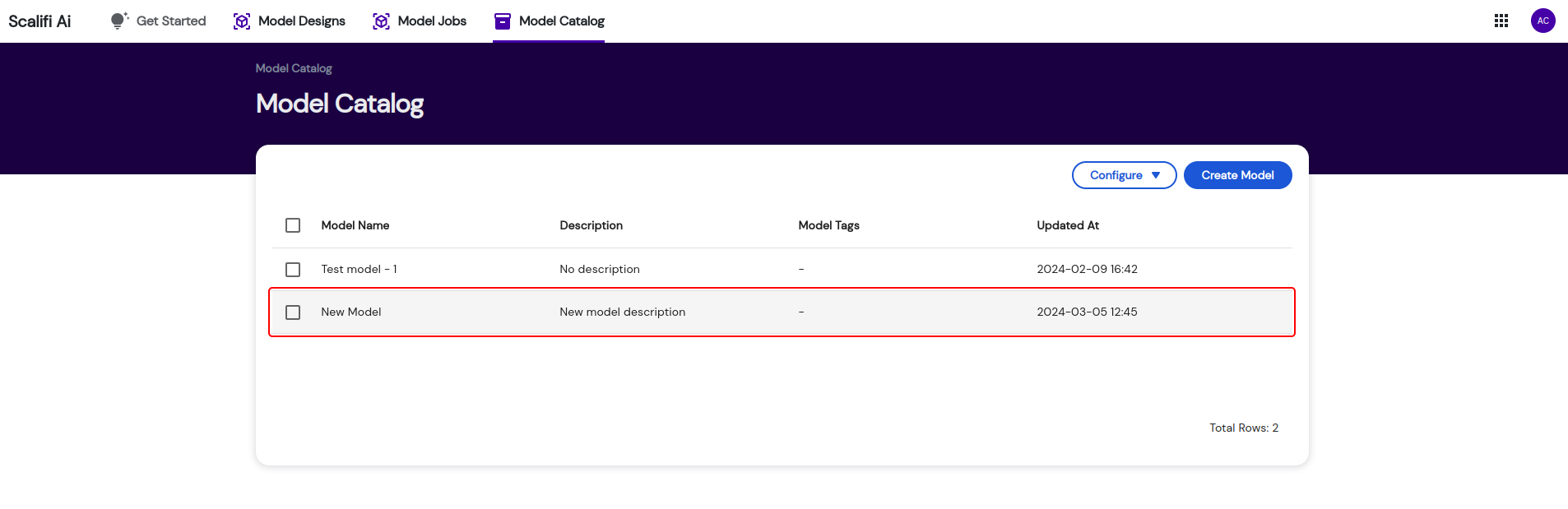
- To add tags to a model, go to the Model Catalog List and click on the model which you have created.
- Next, you will see the per model page where all the details like model name, description, tags and metadata information, etc is displayed.
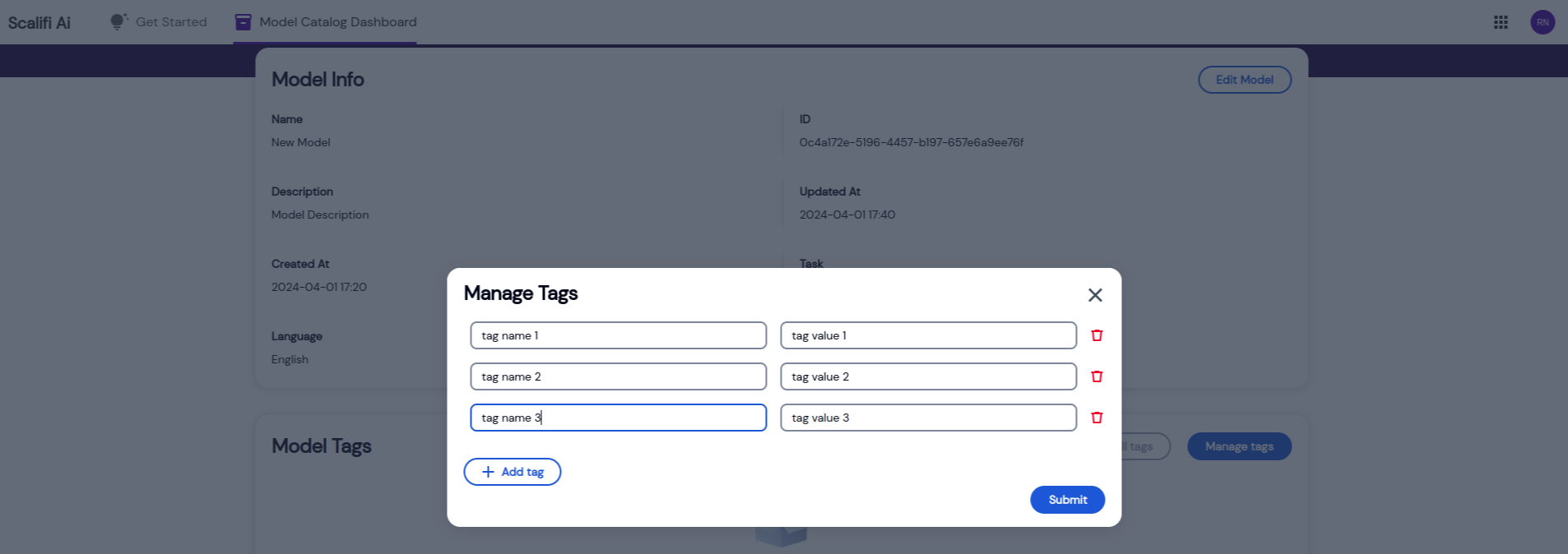
- Click on Manage Tags, and add the key:value data of tags.
- To add multiple tags, use the Add tag button. If any tag is not needed you can delete it by clicking on the delete button on the right side of the tag.
- Finally, click on Submit to add the tags in a model.
Remove Model Tags
- Once the tags are removed from the model, you will no longer be able to categorize, search or filter that model in relation to the tag key or values. Before deleting the tags make sure you no longer need those tags.
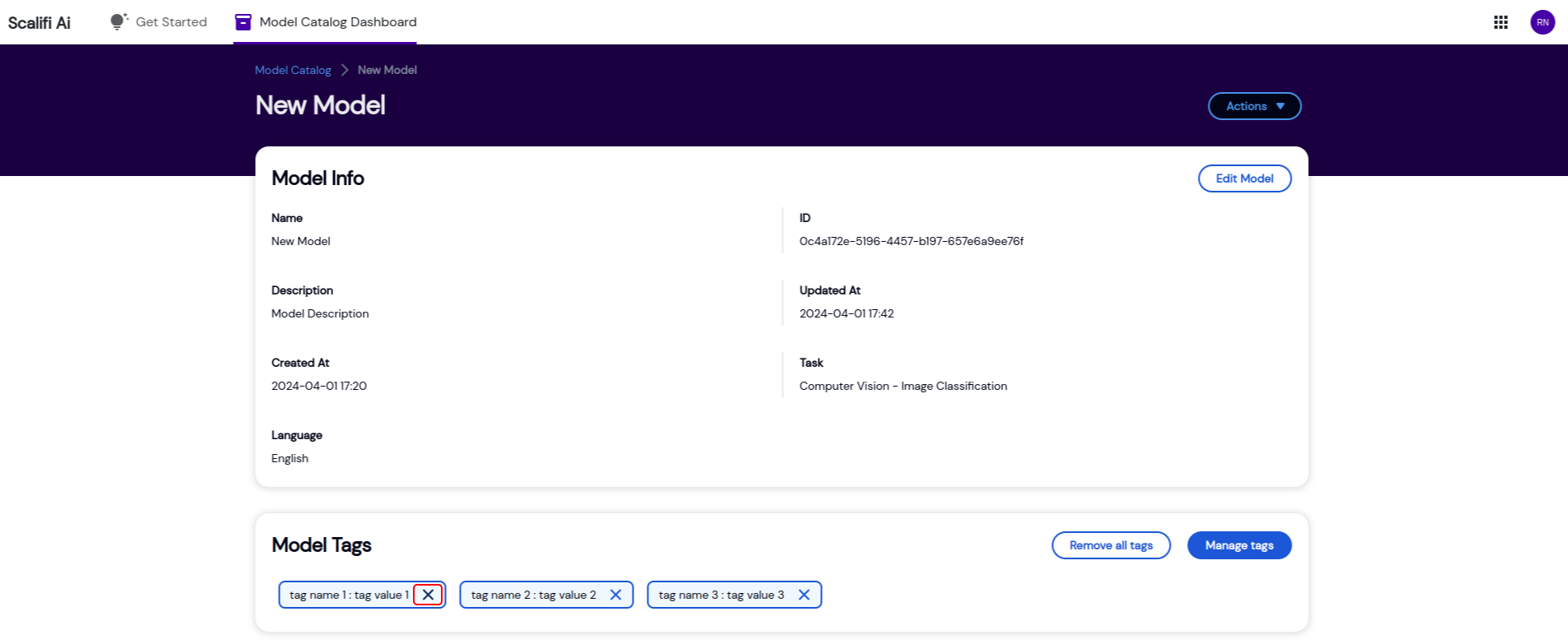
- To remove model tags, simply click on the cross icon (X) of a tag.
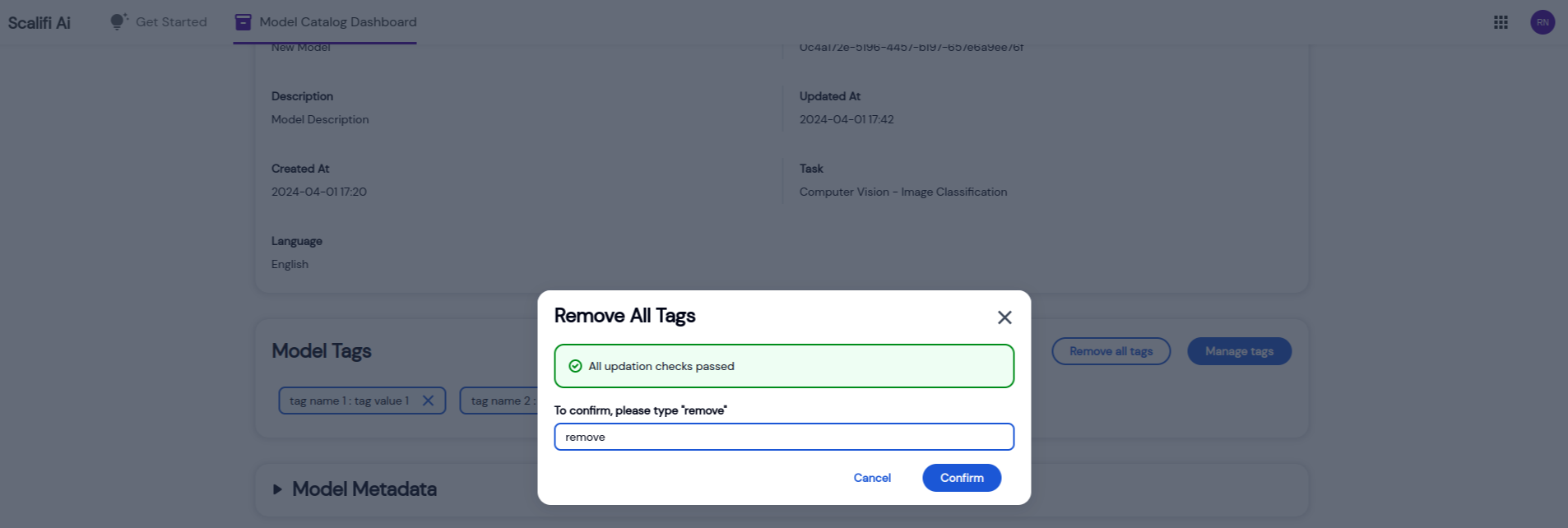
- To remove all model tags at once, click on the Remove all tags button.
- Confirm the removal process and click on Confirm
Model Metadata
Refer the metadata guide for managing the model metadata.
Update Model
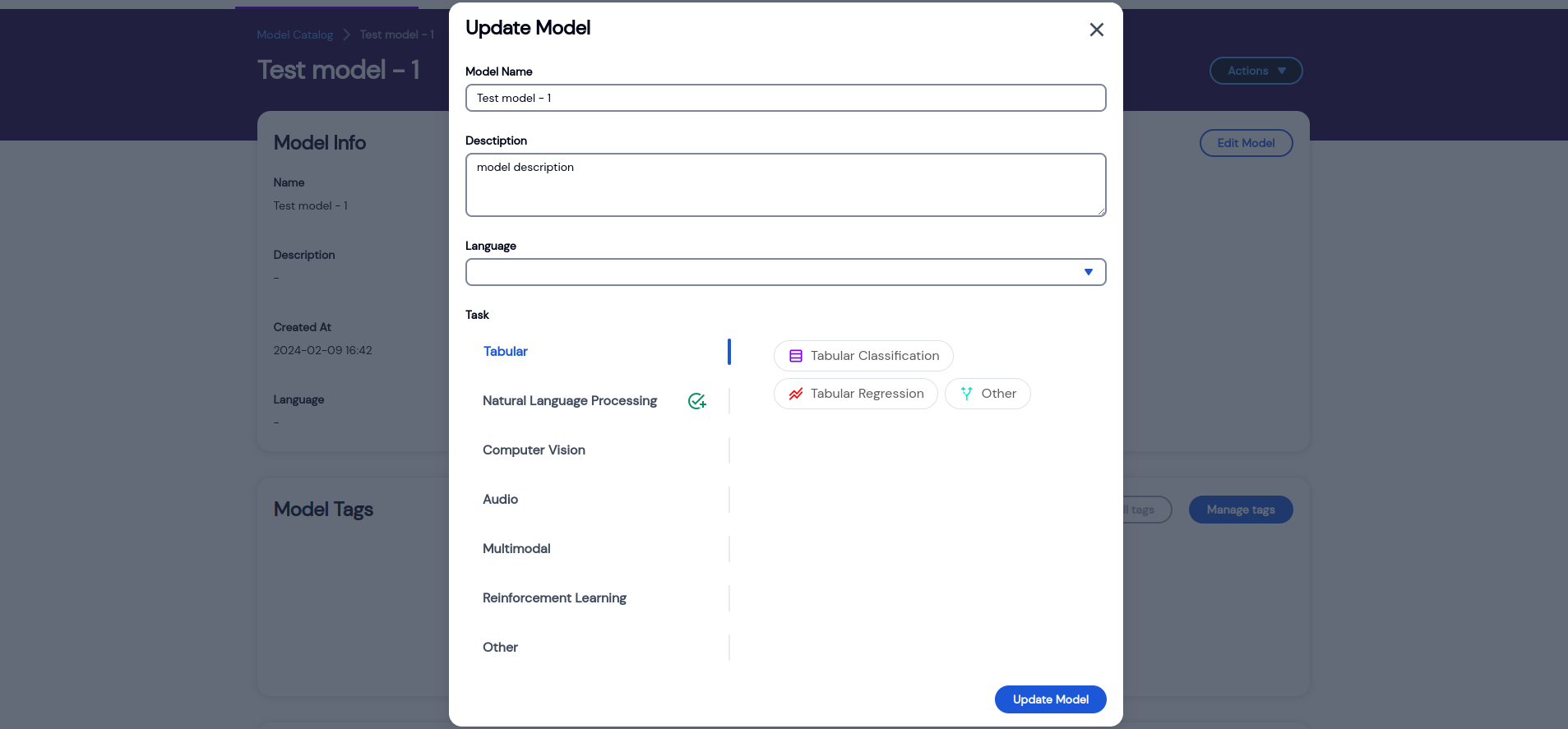
- On the per model catalog page, click on Edit Model.
- Update the necessary details and then click on Update Model.
Delete Model
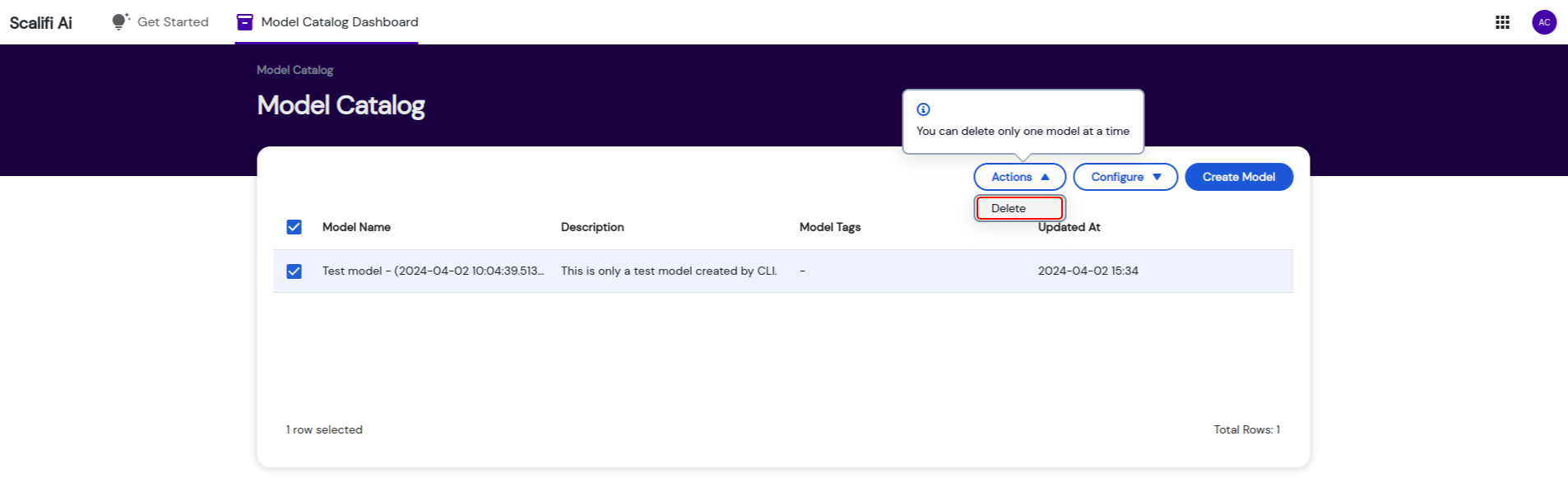
- There are 2 ways of deleting a model. 1st way is from the Model Catalog List table. Select the model from the list and click on Delete option under Actions dropdown.
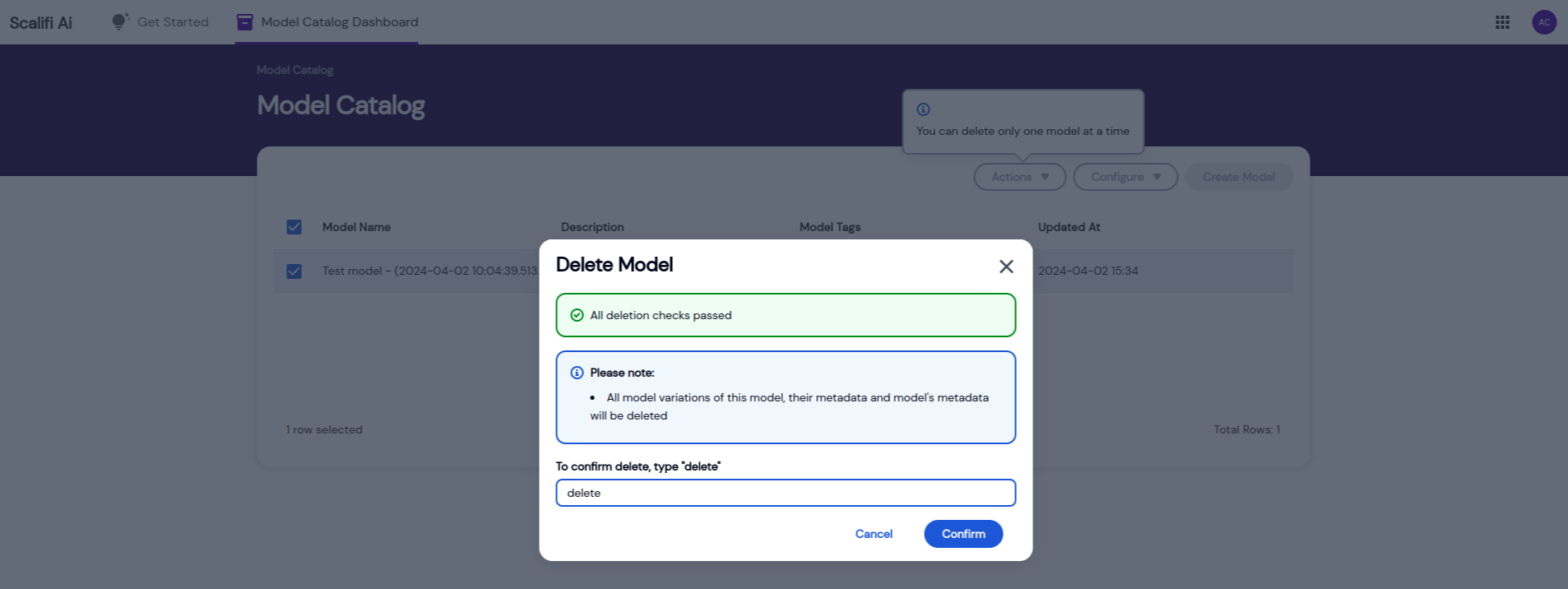
- Confirm the removal process and click on Confirm
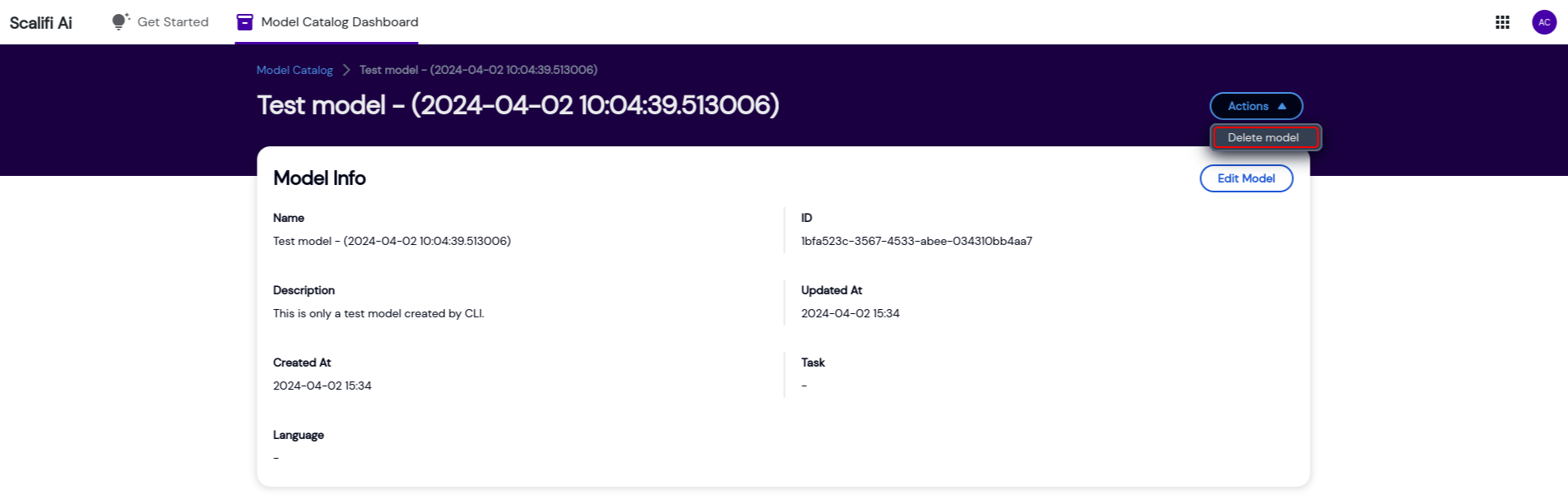
- 2nd way is from per model page. Select the Delete Model option under the Actions dropdown.
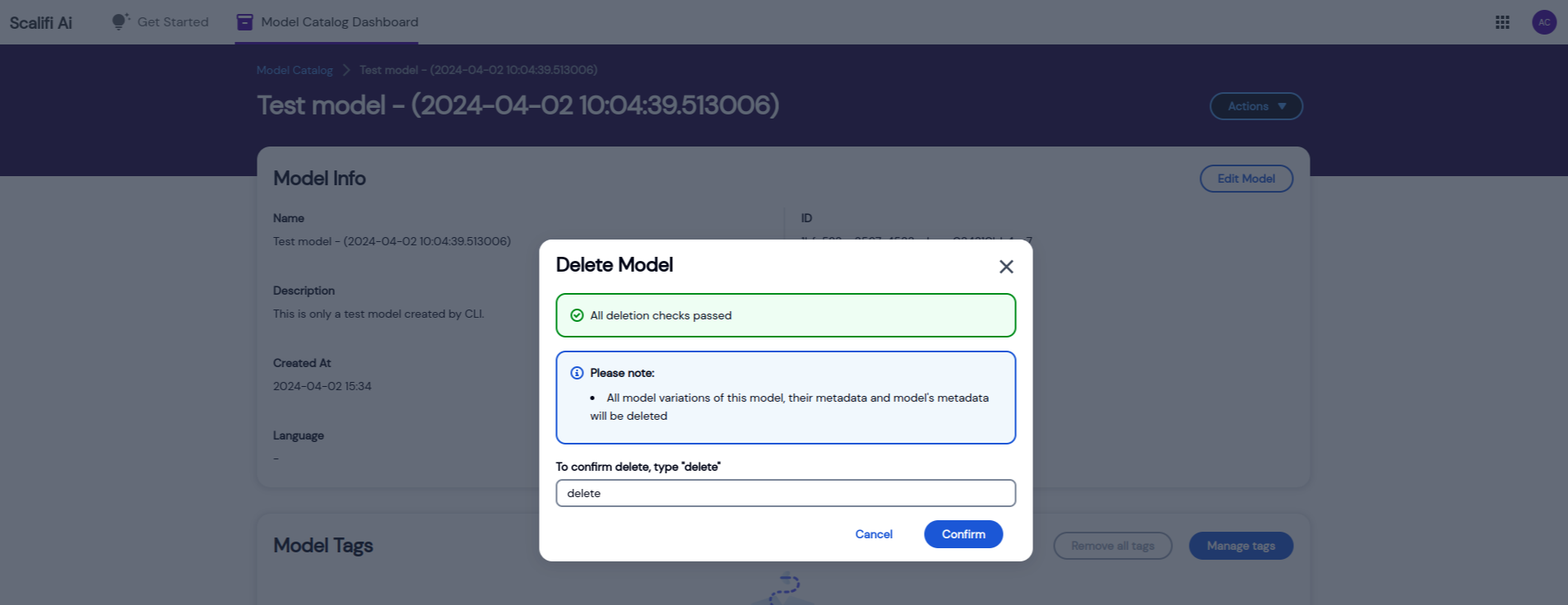
- Confirm the removal process and click on Confirm